

In-app notifications
In-app notifications keep you up to date on news, alerts and maintenance directly inside Gaudio OTT — no email needed.
Where they are
Section titled “Where they are”At the top right of the top bar there is a bell icon. When it lights up with a number, you have one or more unread notifications. On mobile the same badge appears on the user avatar instead.
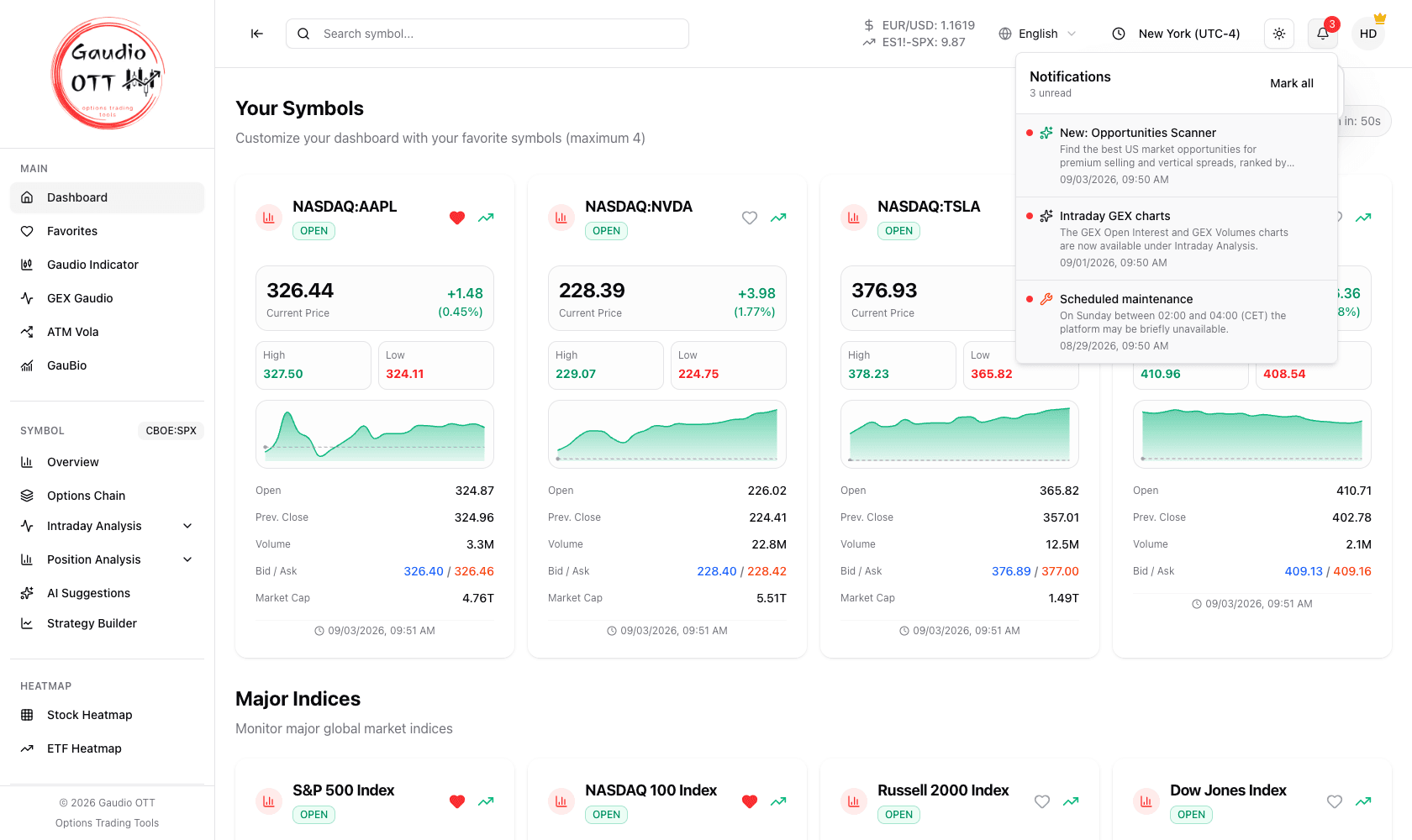
The notification panel: unread items carry a dot, and Mark all clears the counter in one action.
Reading notifications
Section titled “Reading notifications”Click the bell to open the list of all notifications, read and unread. Click the one you are interested in: it opens in a popup and is marked as read automatically.
From the same panel you can also:
- mark a notification as unread again, to come back to it later;
- mark all as read, to clear the badge in one action.
Notifications are shown in your interface language.
Types of notification
Section titled “Types of notification”The notification feed carries platform updates, service alerts, planned maintenance windows and other announcements. It is the channel used for anything that affects how the app behaves, so it is worth checking when something looks different from usual.
Notifications are not market alerts. Price and level alerts are a separate, per-chart feature: see Breakout Alerts on the Gaudio Indicator, GEX Gaudio and GauBio pages.
Common mistakes
Section titled “Common mistakes”- Expecting price alerts here. Use Breakout Alerts on the chart toolbars instead.
- Dismissing the badge without reading. Mark all as read clears the counter but the messages stay in the list, so nothing is lost.
Frequently asked questions
Where are notifications in Gaudio OTT?
Behind the bell icon at the top right of the top bar on desktop, and behind the badge on the user avatar on mobile. A number on the icon means there are unread notifications.
How do I mark a notification as read?
Clicking a notification opens it in a popup and marks it as read automatically. You can also mark a notification as unread again, or mark all notifications as read from the same panel.
What kind of notifications does Gaudio OTT send?
Platform updates, service alerts, planned maintenance announcements and other product news. They are not market alerts.
How do I get an alert when price breaks a level?
Enable Breakout Alerts in the chart toolbar of the Gaudio Indicator, GEX Gaudio or GauBio page. That is a per-chart feature, separate from the in-app notification feed.
Related pages
Section titled “Related pages”Ready to use Gaudio OTT?
Section titled “Ready to use Gaudio OTT?”Open your free account and put what you just read into practice.