

Your devices
Your devices is the card in Settings that lists the browsers that have used your account. If you do not recognise one, you can revoke it there and then change your password.
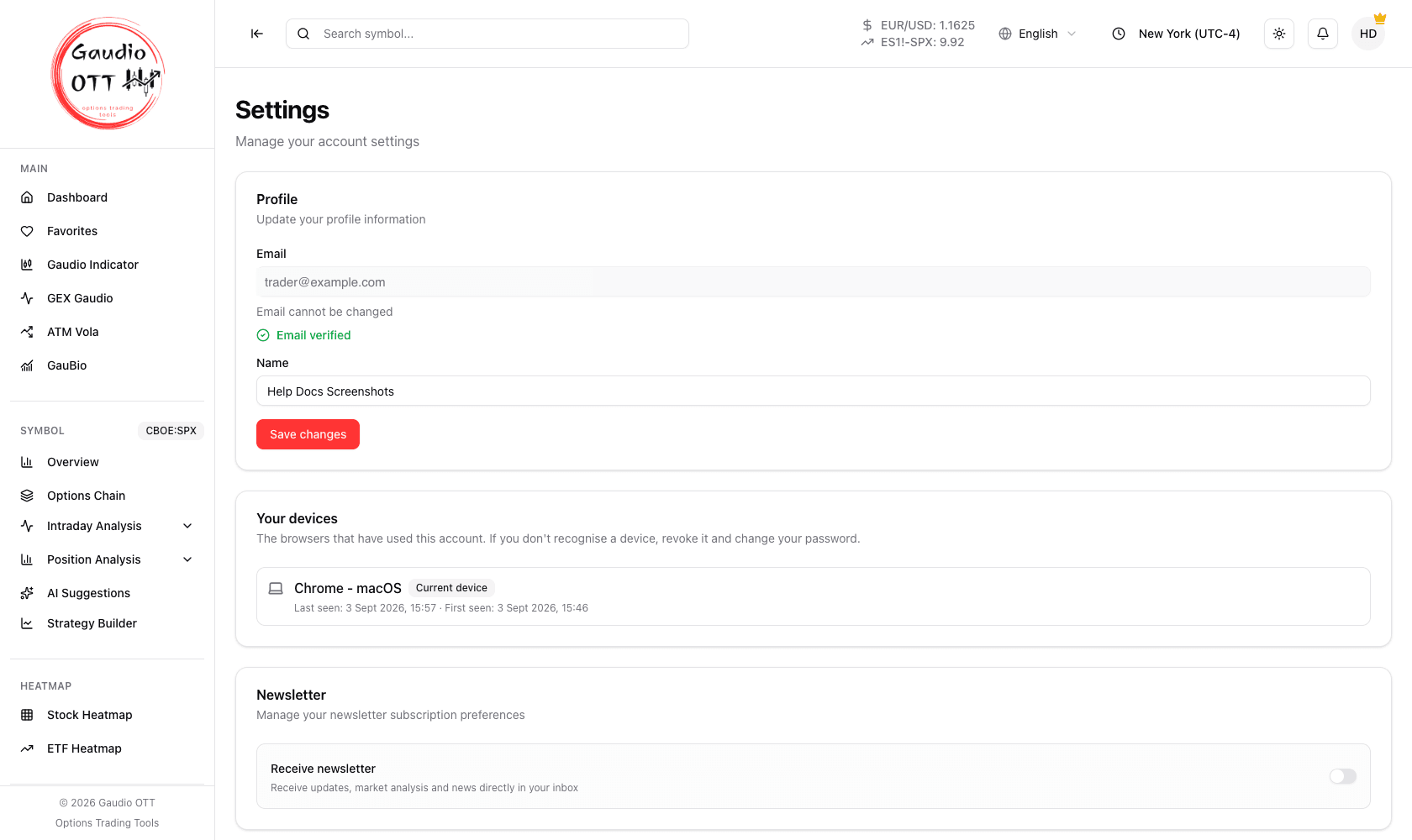
Settings: the Your devices card sits between Profile and Newsletter, one row per browser.
What the list shows
Section titled “What the list shows”For each browser the card shows:
- the browser name — or Unrecognised browser when it cannot be identified;
- a Current device badge on the one you are using right now;
- a Connected now badge on any browser with an active session;
- First seen and Last seen timestamps.
If the list is empty, it simply means nothing has been recorded yet: entries are created when the app is opened from a browser, so a device that has not come back since the feature was introduced will not appear until its next visit.
Revoking a device
Section titled “Revoking a device”Press Revoke next to a browser and confirm. That browser will have to sign in again with email and password before it can use the account. You can revoke a device as many times as you like — it is not a permanent block.
Revoking is the right response to a browser you do not recognise. Do it, then change your password so the same credentials cannot be reused.
How this relates to the single-device rule
Section titled “How this relates to the single-device rule”These are two different things, and it is worth keeping them apart:
- One active device at a time is the access rule: signing in somewhere new closes the previous session. See User menu.
- Your devices is the inventory: the history of browsers that have used the account, with the ability to force any of them to sign in again.
A long list is not by itself a sign of a problem — a new browser profile, a cleared cache or a different machine each create an entry. What matters is whether you recognise them.
Common mistakes
Section titled “Common mistakes”- Reading an empty list as “no devices ever used this account”. It means nothing has been recorded yet, not zero devices.
- Revoking your current device. It works, but you will have to sign in again immediately.
- Revoking without changing the password. If credentials leaked, revoking alone does not stop a second sign-in.
Frequently asked questions
Where do I see which devices have used my Gaudio OTT account?
In the Your devices card on the Settings page, reachable from the user menu or from the Configuration section of the side menu. It lists each browser with first seen and last seen timestamps.
How do I revoke a device I do not recognise?
Press Revoke next to that browser in the Your devices card and confirm. It will have to sign in again with email and password. Then change your password so the same credentials cannot be reused.
Why is my devices list empty?
Because nothing has been recorded for the account yet. Entries are created when the app is opened from a browser, so a browser that has not visited recently will only appear on its next visit.
Why are there more devices listed than machines I own?
Each browser profile counts separately, and clearing site data or using a private window can create a new entry. A longer list is normal; what matters is whether you recognise the browsers on it.
Related pages
Section titled “Related pages”Ready to use Gaudio OTT?
Section titled “Ready to use Gaudio OTT?”Open your free account and put what you just read into practice.