

Strategy Builder
The Strategy Builder is where you chart options strategies with an interactive payoff and manage a whole portfolio of positions, from entry to close. It is reached from the side menu, under Symbol, and it always works on the active symbol.
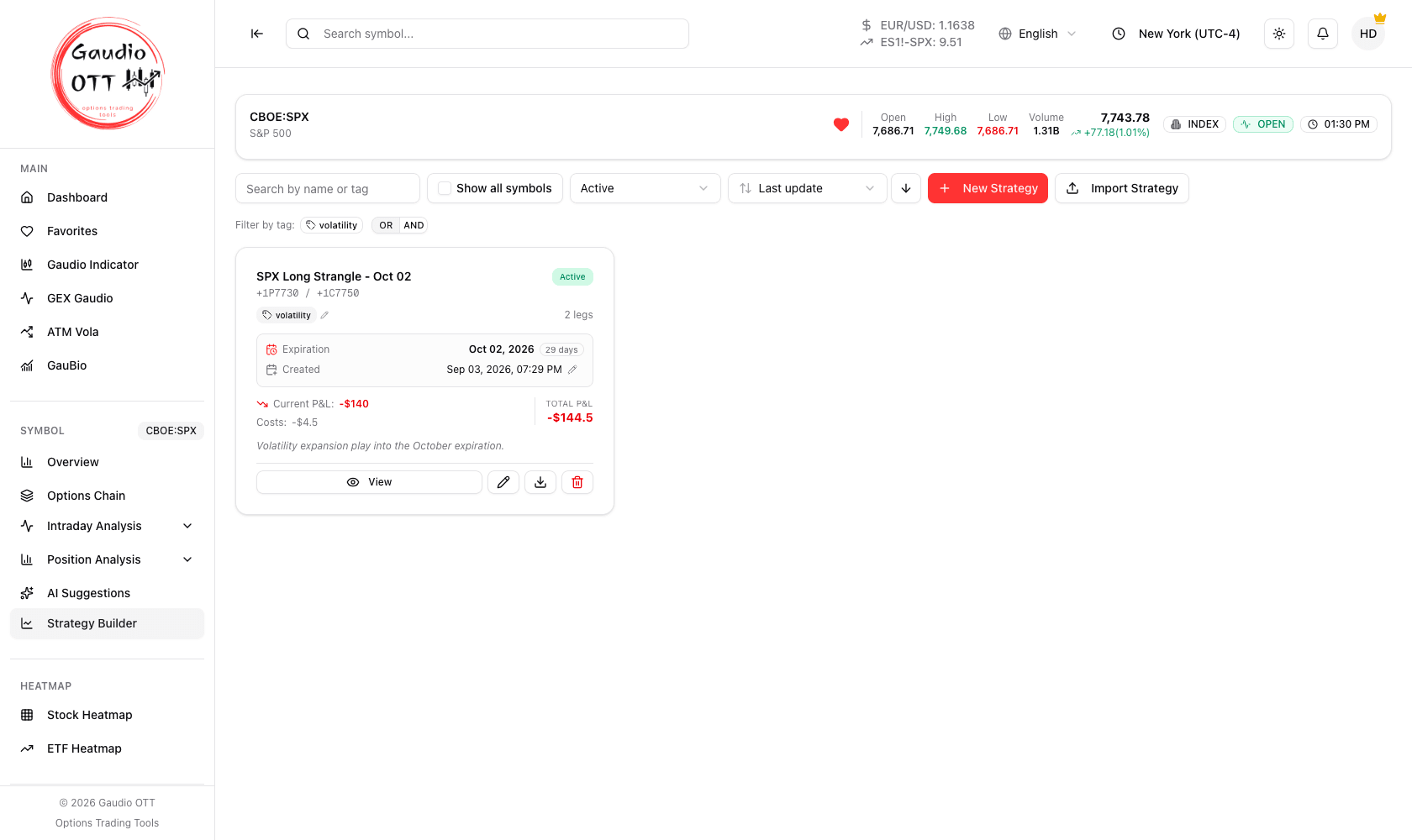
The strategy list: one card per saved strategy, with status, legs, expiration, P&L and tags.
This page covers the strategy list and how to start a new strategy. The rest of the manual continues in:
- Legs and quick strategies — building the position
- Monitoring and closing — following it and taking it off
- Payoff chart and simulation — reading and stressing the curve
What the section does
Section titled “What the section does”- Chart options strategies with an interactive payoff curve.
- Manage an entire portfolio of strategies, from putting a position on to closing it.
- Monitor how positions evolve over time with advanced simulations.
Available on the Strategy and Ultra plans.
The strategy list
Section titled “The strategy list”Opening the section shows the list of saved strategies. For each one you see:
| Field | Description |
|---|---|
| Name | The name you gave the strategy |
| Leg summary | A compact notation of the components, e.g. +1P7730 / +1C7750 |
| Status | Active, To verify, or Closed |
| Leg count | How many legs the strategy has |
| Expiration | Expiration date and days remaining |
| Created | When it was created |
| Current P&L | Profit and loss as of now |
| Costs | Commissions recorded against the strategy |
| TOTAL P&L | Current P&L after costs |
| Tags | Your own labels, editable in place from the card |
| Notes | The note you saved with the strategy, shown under the figures |
Status is derived, not set by hand:
- Active — at least one leg is still open.
- To verify — no open legs remain, but at least one leg has expired and is waiting for you to confirm how it ended.
- Closed — every leg has been closed.
Filtering and sorting the list
Section titled “Filtering and sorting the list”- Search by name or tag.
- Show all symbols — when ticked, every strategy on every underlying is listed (the full portfolio view). When unticked, only the strategies of the currently active symbol are shown.
- Status filter — All, Active, To verify, Closed.
- Filter by tag — the tags in use appear as chips, with an OR / AND switch controlling whether several selected tags are combined inclusively or exclusively, plus a Clear action.
- Sort by Last update, Created, Name or Expiration, with a button to reverse the order.
- Reset filters returns the list to its default state.
Quick actions on a card
Section titled “Quick actions on a card”Every strategy card offers:
- View — open the real-time monitoring page.
- the pencil — open the strategy in editing mode.
- the download icon — export the strategy as a file on your computer.
- the bin — remove the strategy.
The status filter opens on Active, so a strategy you have just closed is filtered out until you switch to Closed or All.
Tags and costs can be edited in place from the card, without opening the strategy.
Creating a new strategy
Section titled “Creating a new strategy”- Click the red New Strategy button.
- The creation page opens, made of three main areas:
- Profit & Loss Chart (top) — the risk and reward profile.
- Options Chain (bottom left) — strikes with the price you would pay or receive.
- Strategy Legs (bottom right) — the quick-strategy catalogue and the legs you have entered.
Both lower panels are collapsible, and the proportions can be adjusted by dragging the separator between them. Vertical layout in the top bar rearranges the three areas into a single column.
On a narrow screen — a phone, or a tablet held upright — the vertical layout is the only one available: placing the panels side by side would leave two columns too narrow to use, so the button that switches arrangement is not shown. The choice you made on a wide screen stays saved and comes back when you reopen the page there.
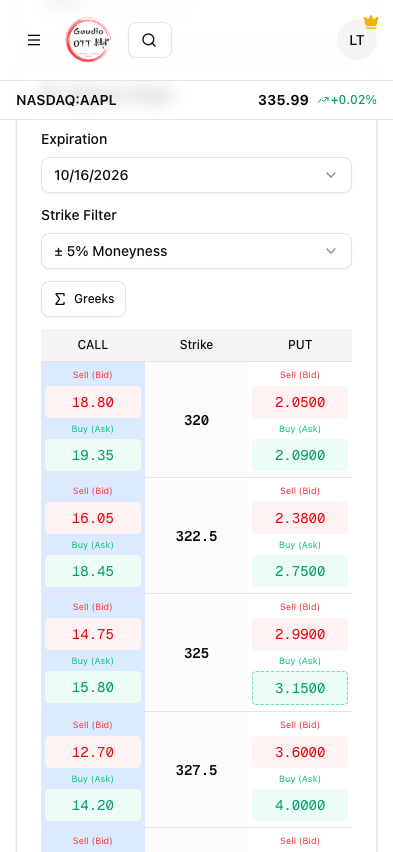
On a phone: the panels in a single column and the chain laid out CALL, Strike, PUT, with Sell and Buy stacked inside each side.
The top bar
Section titled “The top bar”- Use: Bid/Ask — Mid Price — which price every valuation uses. A new strategy opens on Mid Price, and the choice is saved with the strategy. See Legs and quick strategies.
- Refresh Prices — re-fetch the chain and re-price the legs.
- Vertical layout — switch the panel arrangement.
- Open Payoff — open the payoff chart on its own page.
- Save Strategy — save, enabled once the strategy has at least one leg.
Options chain settings
Section titled “Options chain settings”- Expiration — selected from the dropdown at the top.
- Strike Filter — a moneyness range limiting which strikes are shown.
- Greeks — toggled with the dedicated button. They are available in an extended format, one row per greek, or a compact summary table, depending on the available width.
On a narrow column the chain changes shape on its own: the five columns become three — CALL, Strike, PUT — with Sell and Buy stacked inside each side. It is the same chain, laid out so that the strike reads in full and the quantity buttons stay tappable.
In the builder the chain is laid out for clicking a leg straight in: Sell (Bid) and Buy (Ask) on the call side, Strike in the middle, then Sell (Bid) and Buy (Ask) on the put side, so the number you click is the price of the action you are taking.
There is also an Import Strategy button next to New Strategy, which recreates a strategy from a previously exported file.
Common mistakes
Section titled “Common mistakes”- Not noticing the “Show all symbols” checkbox. With it unticked, strategies on other underlyings are simply filtered out, not missing.
- Leaving strategies in “To verify”. Confirm how expired legs ended, or the realized figures stay incomplete.
- Deleting instead of exporting. Deletion is immediate; exporting first gives you a file you can re-import.
Frequently asked questions
What is the Gaudio OTT Strategy Builder?
It is the section that lets you chart multi-leg options strategies with an interactive payoff curve, manage a whole portfolio of positions from entry to close, and monitor how they evolve over time with advanced simulations. It is available on the Strategy and Ultra plans.
What do the Active, To verify and Closed statuses mean?
Active means at least one leg is still open. To verify means no open legs remain but at least one leg has expired and is waiting for you to confirm how it ended. Closed means every leg has been closed.
How do I see all my strategies across every symbol?
Tick the Show all symbols checkbox above the list. With it unticked the list only shows strategies on the currently active symbol.
Can I organise strategies with tags?
Yes. Tags can be set when you save a strategy and edited in place from the strategy card afterwards. The list can be searched by tag and filtered by one or more tag chips, with an OR / AND switch controlling whether multiple tags are combined inclusively or exclusively.
How do I back up a strategy?
Use the Download button on the strategy card, or Export from the view page. The file can later be brought back with the Import Strategy button, which recreates the strategy with its legs, history and notes.
Which plans include the Strategy Builder?
Strategy and Ultra. It is not available on the Free or Premium plans.
Related pages
Section titled “Related pages”- Legs and quick strategies
- Monitoring and closing
- Payoff chart and simulation
- Options Chain
- Opportunities Scanner
Ready to use Gaudio OTT?
Section titled “Ready to use Gaudio OTT?”Open your free account and put what you just read into practice.