

Monitoring and closing a strategy
Once a strategy is saved, the view page becomes its monitoring dashboard: real-time profit and loss, aggregate greeks, and the full chronological history of everything you did to the position.
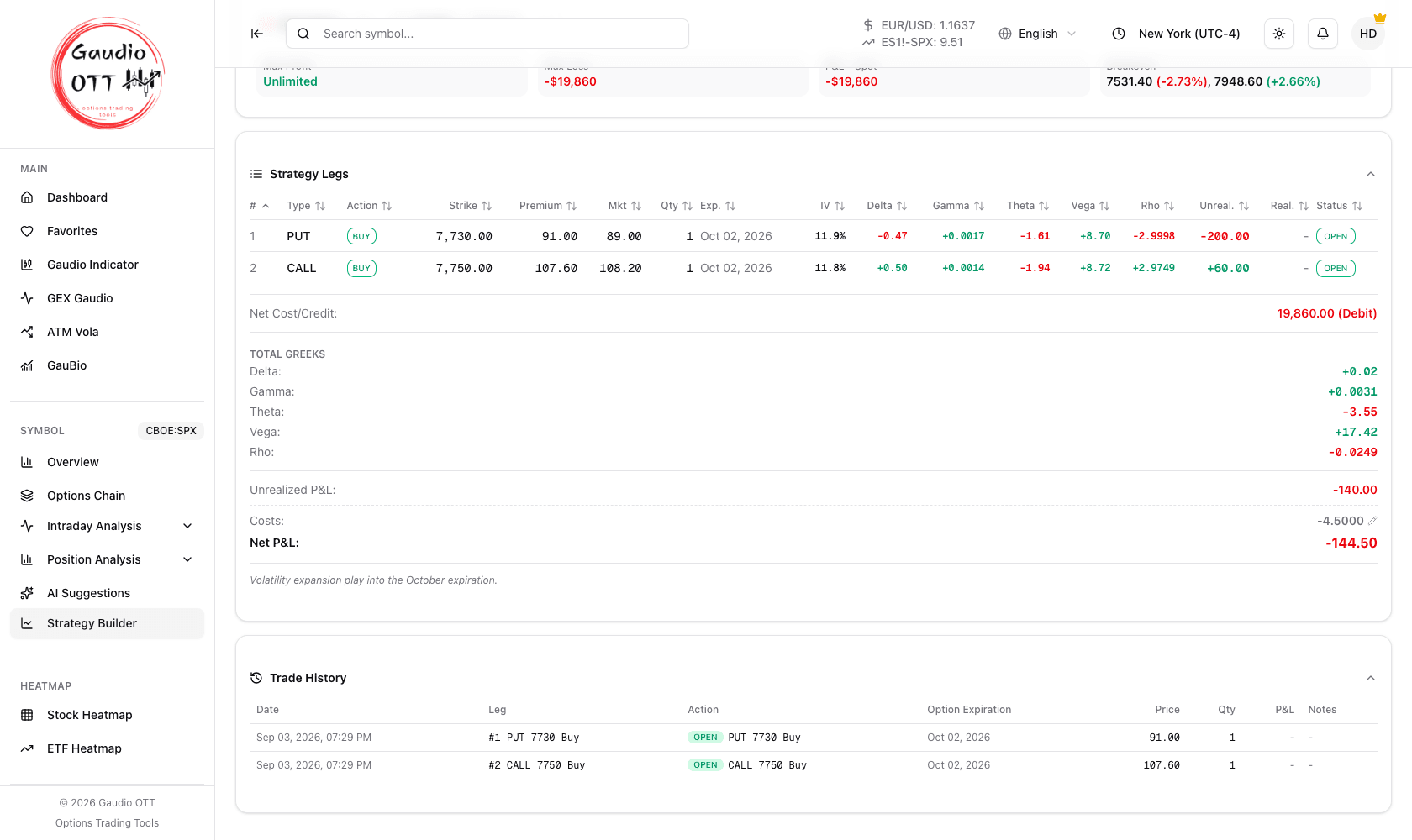
The view page: legs with their own greeks and status, the total greeks, the P&L summary net of costs, and the trade history.
Saving a strategy
Section titled “Saving a strategy”- Click Save Strategy.
- Enter a Strategy name — the only required field.
- Optionally add Notes, Tags and Costs (commissions) right here; all three can also be changed later.
- Confirm with Save.
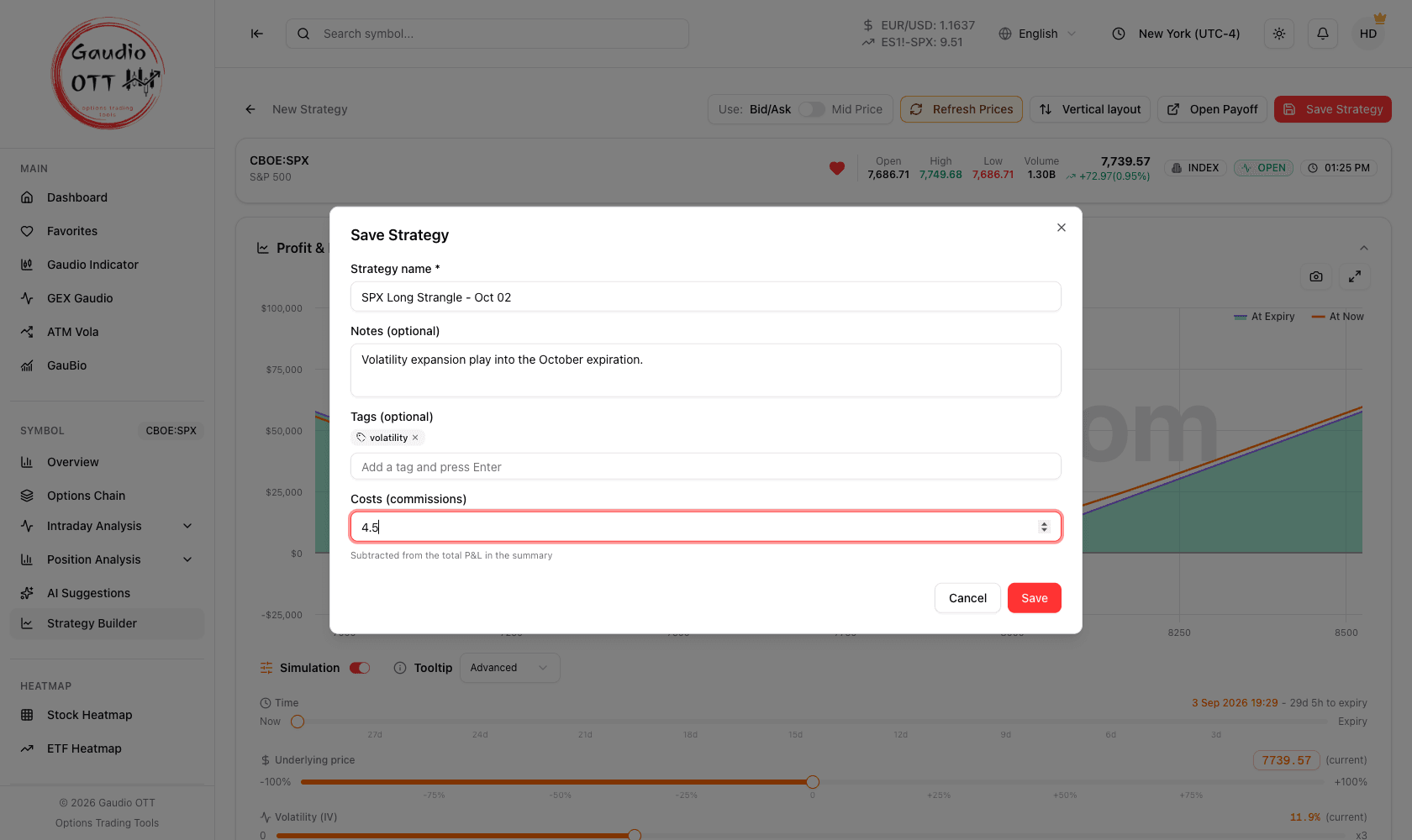
The save dialog: only the name is required; notes, tags and commissions can be set here or later.
The strategy is saved and you are moved automatically into View mode.
The view page
Section titled “The view page”Data on the view page refreshes automatically every minute. The page contains:
- Payoff chart — the risk and reward profile, updated in real time. See Payoff chart and simulation.
- Strategy Legs — a sortable table, one row per leg, with #, Type, Action, Strike, Premium (your entry price), Mkt (the current market price), Qty, Exp., IV, the five greeks, Unreal., Real. and Status (open or closed).
- Net Cost/Credit — the total cost of the position, marked (Debit) or (Credit).
- TOTAL GREEKS — Delta, Gamma, Theta, Vega and Rho for the whole position.
- P&L summary:
- Unrealized P&L — profit or loss on the legs still open;
- Costs — the commissions recorded on the strategy, editable in place;
- Net P&L — the result after costs. Realized profit and loss appears per leg in the Real. column, and in the totals once legs have been closed.
- Your notes, shown under the figures.
- Trade History — a chronological log with Date, Leg, Action, Option Expiration, Price, Qty, P&L and Notes. On a phone the same trades are shown one per card rather than as a table, so no column gets squeezed.
Tags and costs
Section titled “Tags and costs”Two things you can record against a strategy without touching its legs:
- Tags — your own labels. Set them in the save dialog, or edit them in place from the strategy card afterwards; the strategy list can then be searched and filtered by tag.
- Costs (commissions) — a single figure for the commissions attributable to the strategy. Edit it in place by clicking the value, entering a number greater than or equal to zero and pressing Save. The Net P&L line then accounts for it.
Recording costs is what makes the P&L comparable with your broker statement rather than a gross theoretical figure.
Editing an existing strategy
Section titled “Editing an existing strategy”- Click Edit — from the card or from the view page.
- Make your changes: add legs, close some, change strikes.
- The system flags the presence of unsaved changes.
- Click Save and confirm with Update.
Undo and redo
Section titled “Undo and redo”Undo and Redo arrows are available, exactly as in a standard office application, so you can move back and forth through the changes before saving. The system keeps the complete history in memory: every edit, every leg opening and close, with their profit and loss.
Closing a leg
Section titled “Closing a leg”In edit mode each leg has two buttons:
- − (minus) — close the leg.
- + (plus) — add quantity to the same leg, for example at a different price. This is the Add to position action.
The closing procedure
Section titled “The closing procedure”- Click the − button on the leg you want to close.
- Under Close price, choose the mode:
- Market — closes at the current price, showing a preview of the resulting P&L;
- Custom — enter the closing price by hand; the system computes the resulting P&L immediately.
- Add notes on the reason for closing, if you want (optional).
- Confirm.
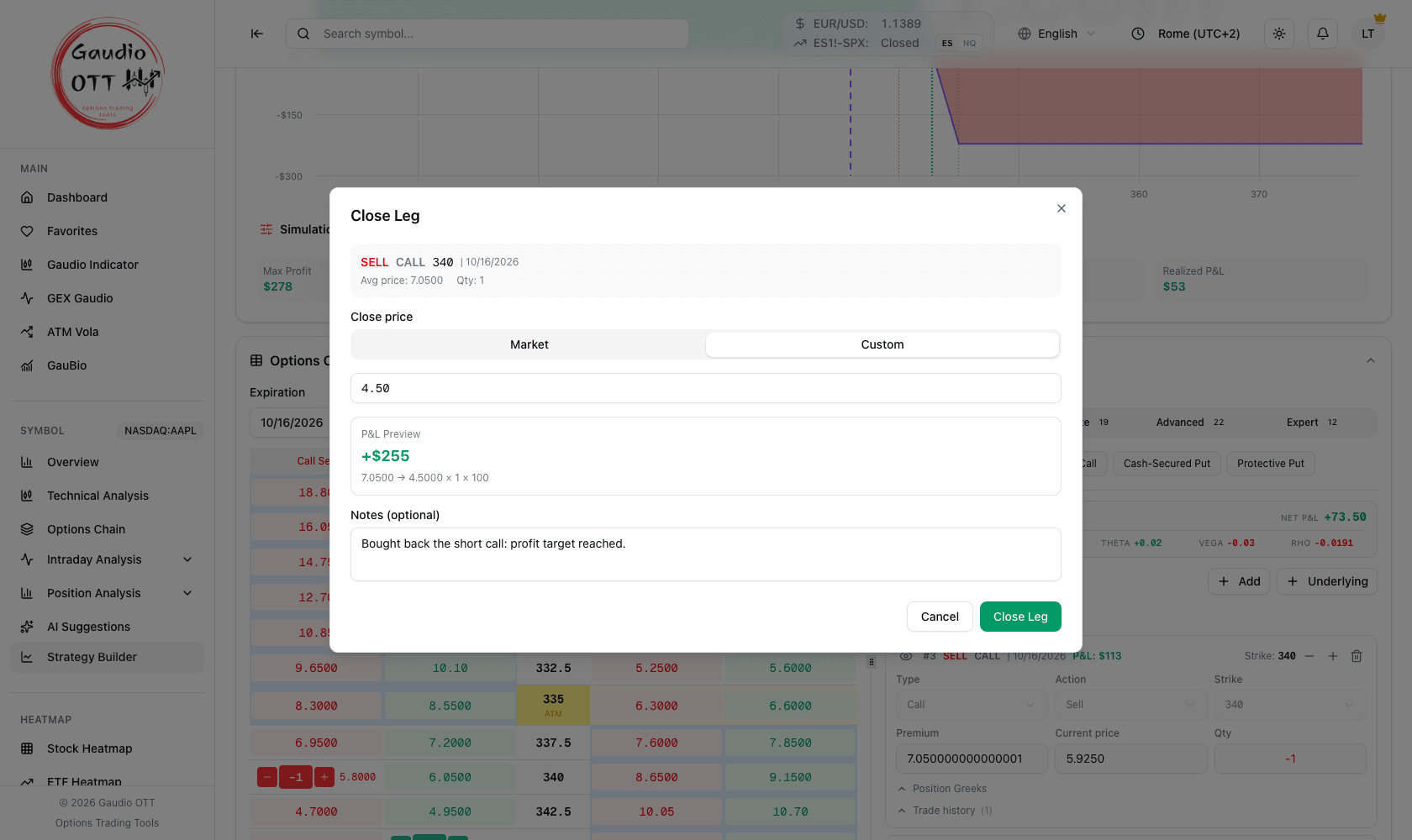
Closing at a Custom price: the preview computes the result straight away — here a call sold at 7.05 and bought back at 4.50, so +255 dollars.
The closed leg stays visible among the components with quantity zero — in edit mode it moves into the collapsible Closed section at the bottom of the legs list — and is recorded in the trade history with its opening date, opening price, closing date, closing price and P&L.
Strategies “To verify”
Section titled “Strategies “To verify””When no legs remain open but at least one has expired, the strategy is marked To verify. It is waiting for you to confirm how the expired leg actually ended — expired worthless, or assigned. Confirming it is what completes the realized figures, so it is worth doing while you still remember.
Exporting and importing
Section titled “Exporting and importing”Exporting a strategy
Section titled “Exporting a strategy”- From the view page: the Export button.
- From the strategy list: the Download button on the card.
The file is downloaded to your computer. It is useful as a backup in case of accidental deletion or errors.
Importing a strategy
Section titled “Importing a strategy”- Click Import Strategy.
- Select the previously exported file from your computer.
- The system recreates the strategy automatically with all its original data — legs, history and notes.
Common mistakes
Section titled “Common mistakes”- Closing a leg at market when you filled at a different price. Use Custom, or the realized P&L will not match your statement.
- Leaving strategies in “To verify”. The realized total stays incomplete until you confirm.
- Ignoring the Costs field. Without it the P&L is gross and will not reconcile with the broker.
- Deleting without exporting. Deletion is immediate and there is no undo at the list level.
- Expecting the view page to update on demand. It refreshes every minute; reload the page for an immediate update.
Frequently asked questions
How do I save a strategy in the Gaudio OTT Strategy Builder?
Click Save Strategy, give it a name, optionally add notes for your own reference, and confirm. The strategy is saved and you are taken into View mode, which is its monitoring dashboard.
How do I close a single leg of a strategy?
In edit mode, click the minus button on that leg. Then choose Market, which closes at the current price and shows a preview of the resulting profit and loss, or Custom, where you enter the closing price by hand. Optionally add a note on the reason, then confirm. The closed leg stays visible with quantity zero and is recorded in the trade history.
What is the difference between realized and unrealized P&L?
Unrealized is the profit or loss on legs that are still open. Realized is the profit or loss on legs already closed. Total is the sum of the two, and Net P&L is the total after the commissions recorded in the Costs field.
How do I record commissions on a strategy?
Click the Costs value on the strategy card or the view page, enter a figure greater than or equal to zero, and press Save. The Net P&L line then subtracts it, which is what makes the numbers comparable with a broker statement.
What does the To verify status mean and what should I do?
It means no legs remain open but at least one has expired and is waiting for you to confirm how it ended, for example expired worthless or assigned. Confirming it completes the realized profit and loss figures for the strategy.
Can I undo changes before saving a strategy?
Yes. Undo and Redo arrows let you move back and forth through the changes made in edit mode before saving, and the system keeps the complete history of every edit and every leg opening and close.
How do I back up or move a strategy?
Export it with the Export button on the view page or the Download button on the card. The resulting file can be brought back with Import Strategy, which recreates the strategy with its legs, history and notes.
Related pages
Section titled “Related pages”Ready to use Gaudio OTT?
Section titled “Ready to use Gaudio OTT?”Open your free account and put what you just read into practice.