Customizable dashboard cards
In the “Your Symbols” section of the Dashboard, just below the market cards, sit the customizable cards: up to four instruments you choose, front and centre every time you open the app.
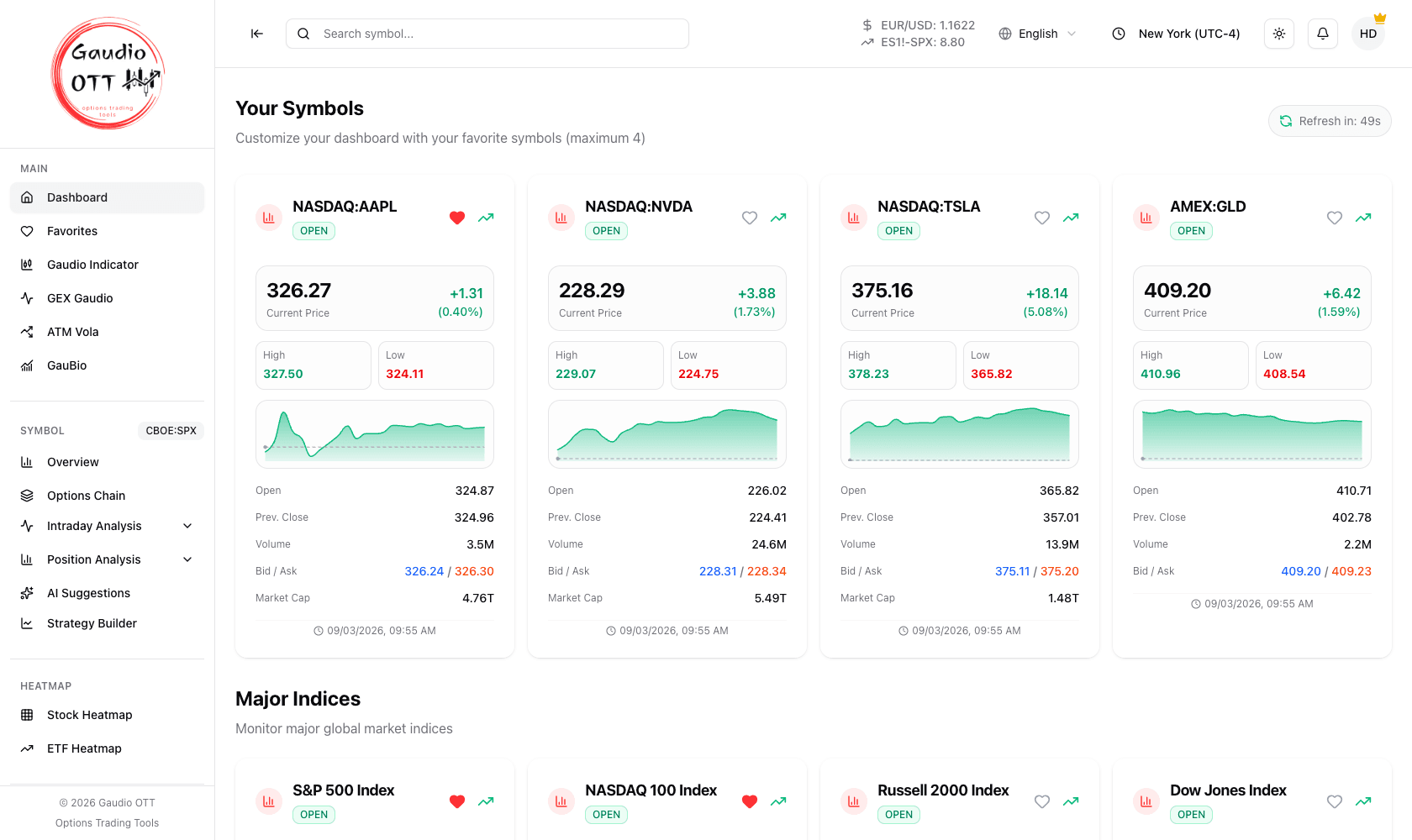
The “Your Symbols” section: four slots you fill with the instruments you follow, each with price, change, high/low and a mini chart.
What this page covers
Section titled “What this page covers”How to fill, change and clear the four card slots, and how they differ from favorites.
Why traders use them
Section titled “Why traders use them”The dashboard’s fixed blocks cover the US benchmarks. The customizable cards are for the four instruments you actually trade — a single stock, a European index, a specific futures contract — so the first screen of every session already contains your own watch set instead of only the market defaults.
How they work
Section titled “How they work”You can set up to four cards. Each one shows the same fields as the other dashboard cards: market status, price, daily change, session high and low, open, previous close, volume, bid / ask and a mini chart.
To configure them:
- Click an empty slot.
- Search and select the symbol you want.
- Repeat for the other slots.
To remove a symbol, point at its card: a red close button appears in the top right corner. The slot goes back to being empty and can be refilled with a different instrument at any time.
Your choice is saved on the account, so the same four cards come back on your next sign-in and on any device you use.
Cards or favorites?
Section titled “Cards or favorites?”They solve different problems and work well together:
- Customizable cards are four fixed slots on the dashboard — a permanent, always-visible cockpit.
- Favorites is an unlimited, reorderable list on its own page, with summary statistics for the whole list.
Use the cards for the handful of instruments you check first, favorites for everything you follow.
Availability
Section titled “Availability”Customizable cards are included in the Premium and Ultra plans. The full comparison is on Plans and pricing.
Common mistakes
Section titled “Common mistakes”- Looking for more than four slots. Four is the limit; use favorites for a longer list.
- Expecting them on Free or Strategy. The feature belongs to Premium and Ultra.
- Assuming a card follows the active symbol. Cards are fixed to the instrument you chose; the active symbol changes as you navigate.
Frequently asked questions
How many customizable cards can I have on the Gaudio OTT dashboard?
Up to four. Each slot holds one instrument and shows its price, daily change, session high and low, and a mini chart.
How do I set a customizable card?
Click an empty slot in the Your Symbols section of the dashboard, search for the symbol you want and select it. Repeat for the other slots. To clear a card, use the close button on it.
Which plans include customizable cards?
Premium and Ultra. They are not available on the Free or Strategy plans.
What is the difference between customizable cards and favorites?
Customizable cards are four fixed slots in the Your Symbols section of the dashboard. Favorites is an unlimited, reorderable list on its own page, with summary statistics for the whole list. The two work well together.
Are my card choices saved?
Yes. The four cards are stored on your account, so they come back on your next sign-in and on any device you use.
Related pages
Section titled “Related pages”Ready to use Gaudio OTT?
Section titled “Ready to use Gaudio OTT?”Open your free account and put what you just read into practice.