Favorites
Favorites is your personal list of the instruments you follow most. Once added, they are collected on a single page and reachable in one click, with no searching every time.
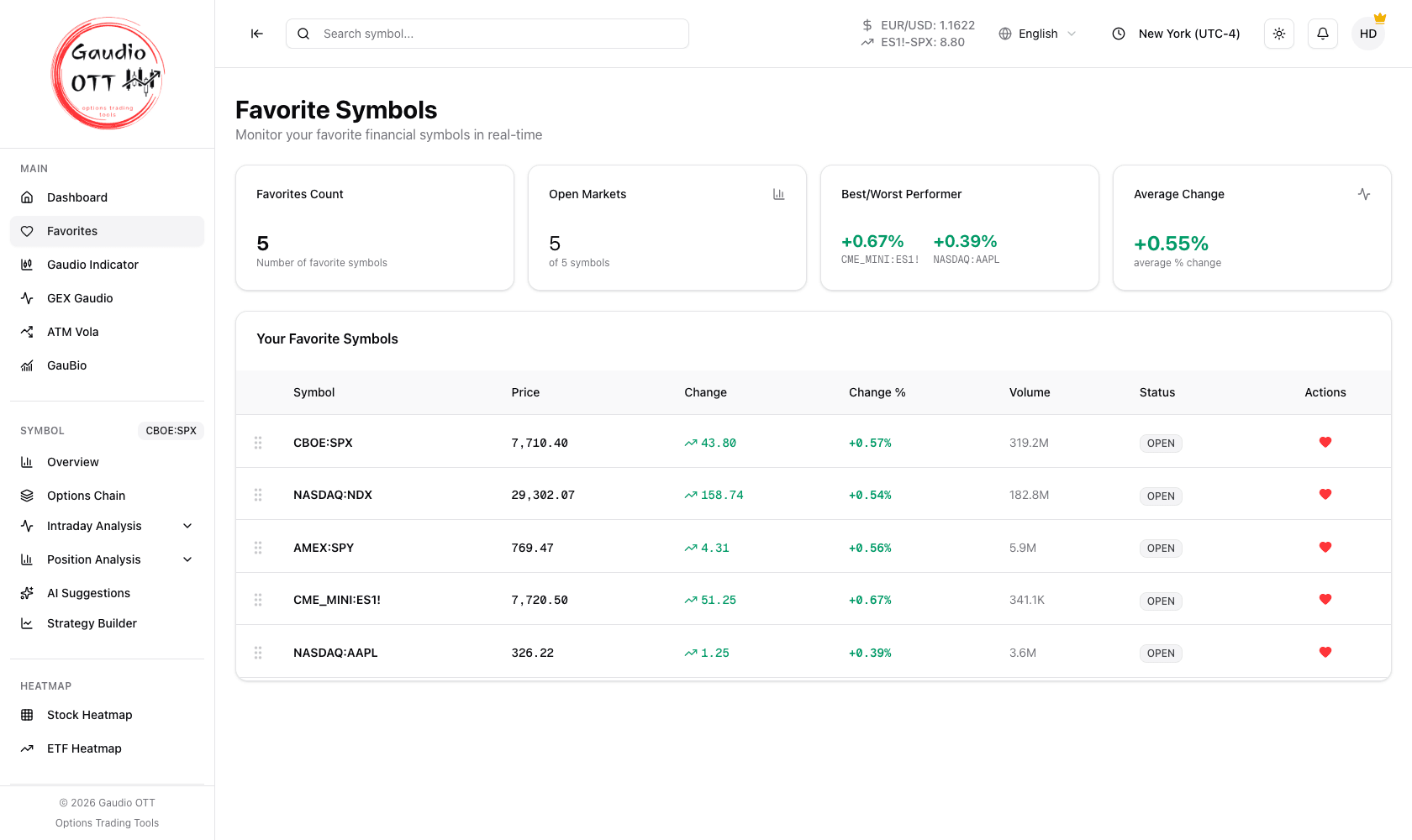
The Favorites page: count, open markets, best and worst performer and average change above the list.
How to add an instrument
Section titled “How to add an instrument”Click the heart icon. You find it in several places across the platform:
- on the instrument cards on the dashboard;
- in the header of every Symbol overview;
- next to every entry in the search panel: the results, the recently viewed and the trending symbols.
When the heart is filled, the instrument is in your favorites; clicking it again removes it. There is no limit on how many you can save.
Where to find your favorites
Section titled “Where to find your favorites”All saved instruments appear in the Favorites section of the side menu, each with an up-to-date price and change. From there you can open one with a click or reorder the list.
What the page shows
Section titled “What the page shows”Above the list, four summary cards give a read of the whole watchlist at once:
- Favorites Count — how many instruments you have saved;
- Open Markets — how many of them have their market currently open, out of the total loaded;
- Best / Worst Performer — the strongest and weakest instrument of the list by percentage change, each with its symbol code;
- Average Change — the average percentage change across the whole list.
The table below lists every instrument with Symbol, Price, Change, Change %, Volume, Status (market open or closed) and Actions, plus a drag handle on the left of each row for reordering.
Why traders use it
Section titled “Why traders use it”The four summary cards turn a watchlist into a breadth read: if Average Change is positive but only one name is up strongly, the move is concentrated. Open Markets matters when your list mixes US, European and futures instruments — a flat row may just be a closed market rather than a quiet one.
Common mistakes
Section titled “Common mistakes”- Reading a closed market as an unchanged one. Check the Status column before drawing conclusions from a flat change.
- Confusing favorites with customizable cards. Cards are four fixed dashboard slots; favorites is an unlimited list on its own page. See Customizable cards.
- Comparing Average Change across lists of different size. It is an unweighted average of your own list, not a market index.
Frequently asked questions
How do I add a symbol to favorites in Gaudio OTT?
Click the heart icon. It appears on the dashboard instrument cards, in the header of every symbol overview, and next to every entry in the search panel, results included. A filled heart means the instrument is saved.
Where do I find my favorite symbols?
In the Favorites section of the side menu. The page lists every saved instrument with price, change and market status, and lets you open or reorder them.
Is there a limit to how many favorites I can save?
No. The favorites list is unlimited. The four-slot limit applies to the customizable dashboard cards, which are a different feature.
Which plans include favorites?
All of them, including Free. Favorite symbols are part of the Symbols feature group available on every plan.
What do the four cards at the top of the Favorites page mean?
They summarise the whole list: how many instruments you follow, how many of their markets are currently open, the best and worst performer by percentage change, and the average percentage change of the list.
Related pages
Section titled “Related pages”Ready to use Gaudio OTT?
Section titled “Ready to use Gaudio OTT?”Open your free account and put what you just read into practice.