

User menu
The user menu is the avatar at the top right of the app. It shows which account is signed in, its paid plan if it has one, and the shortcuts to Settings, Plan and sign-out.
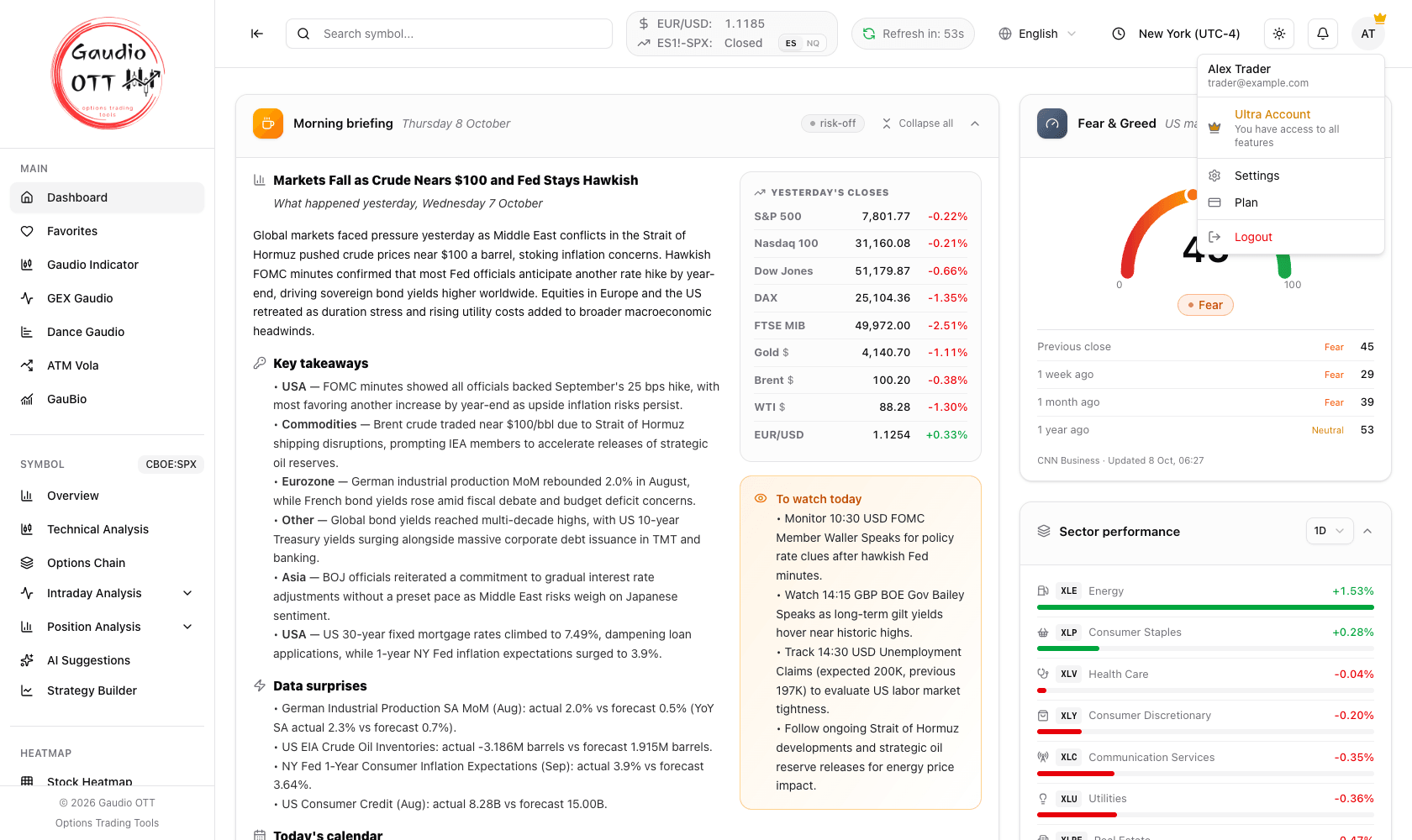
The user menu of an Ultra account: name and email, the plan with its crown, then Settings, Plan and Logout. A Free account shows no plan row.
What it contains
Section titled “What it contains”Opening the menu shows:
- the name and email of the signed-in account;
- on a paid plan, the plan with a crown — Premium, Strategy or Ultra (a Free account shows no plan row);
- a link to Settings, where you change your name, password and newsletter preference, review your devices and delete the account;
- a link to Plan, where you see the active subscription and manage it;
- Sign out.
Small indicators can appear on the avatar itself: a crown on paid plans, a badge with the number of unread notifications on mobile, and a warning triangle when the email address has not been verified yet.
Access from a single device
Section titled “Access from a single device”A Gaudio OTT account can be connected to one device at a time. If you sign in from a new device — or from a different browser on the same machine — the previous session is closed automatically, and you have to sign in again on the device you want to work from.
This is a security measure that protects your account: if you find yourself signed out for no apparent reason, it usually means a sign-in happened somewhere else.
The browsers that have used the account are listed in Settings under Your devices, where you can revoke any of them. See Your devices.
Separately from the single active device, each plan also limits how many windows or tabs you may keep open at once — Free 1, Premium 3, Strategy 3, Ultra 5. The two limits are independent: the device rule is about where you are signed in, the window limit is about how many tabs the same session may use.
Common mistakes
Section titled “Common mistakes”- Confusing the device limit with the tab limit. Being signed out is the device rule; a tab being refused is the plan window limit.
- Trying to change your email here. The address is the account identifier and is read-only.
- Ignoring the warning triangle. It means the email is unverified, which will block the password reset flow later.
Frequently asked questions
Where is the user menu in Gaudio OTT?
It is the avatar at the top right of the top bar, on both desktop and mobile. Opening it shows the signed-in account, its paid plan if it has one, and links to Settings, Plan and sign-out.
Can I use my Gaudio OTT account on two devices at the same time?
No. The account can be connected to one device at a time. Signing in from a new device or a different browser closes the previous session automatically, and you have to sign in again on the device you want to use.
Why was I signed out without doing anything?
Most likely a sign-in happened from another device or browser, which closes the previous session by design. If you do not recognise the activity, review the list under Your devices in Settings, revoke the unknown browser and change your password.
Where do I see which plan my account is on?
A paid plan — Premium, Strategy or Ultra — is shown in the user menu with a crown, and the crown also appears on the avatar; a Free account shows no plan there. The Plan page linked from the menu shows the full subscription status, billing period and next renewal date.
Related pages
Section titled “Related pages”Ready to use Gaudio OTT?
Section titled “Ready to use Gaudio OTT?”Open your free account and put what you just read into practice.