Symbol search
The search finds and opens any instrument — stocks, indices, ETFs and futures — from anywhere in the platform. Selecting a result makes that instrument the active symbol for the whole Symbol section.
Where it is
Section titled “Where it is”In the top bar there is the Search symbol… field, available on every page. Clicking it opens the Search Symbols panel.
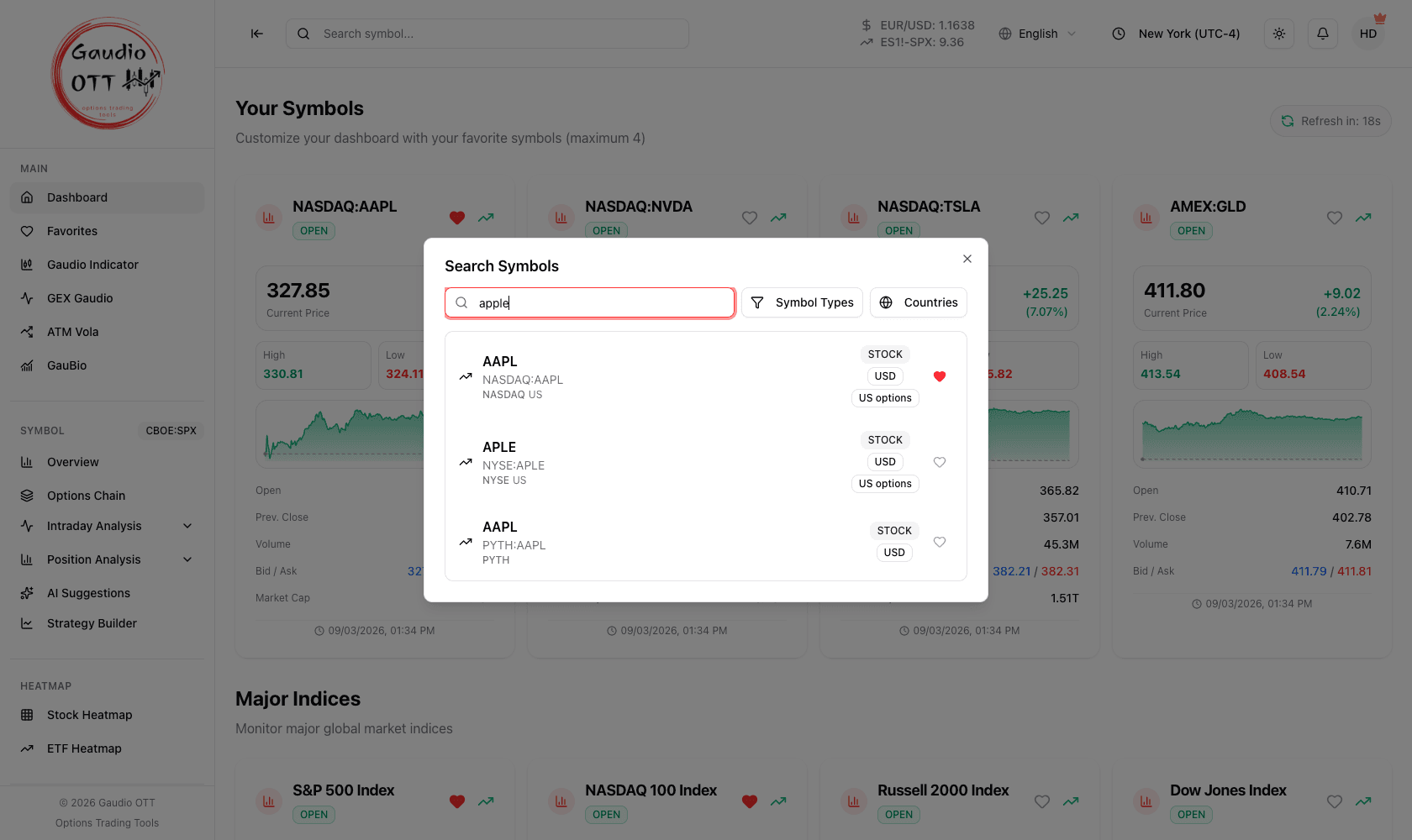
The search panel: type a name or ticker, narrow with Symbol Types and Countries, then pick a result.
How to search
Section titled “How to search”- Start typing the company name or the ticker — for example AAPL, SPX, NQ — in the Type symbol name or ticker… field. Results start appearing from the first character and update as you type.
- Results are ranked by relevance to what you typed, ticker or name. Among equally relevant matches, instruments with listed options come first, then futures before stocks, then official exchanges before CFD brokers: typing ES puts the E-mini S&P 500 future at the top, typing apple puts Apple (NASDAQ:AAPL).
- Narrow the results with the Symbol Types filter (Indices, Futures, Stocks, ETF) and the Countries filter. Both are multi-select and all options are enabled by default.
- Each result shows the ticker, its full code (exchange prefix included), the exchange and country, and badges for its type and currency. Instruments with listed US options additionally carry a US options badge, which is the fastest way to tell up front whether the options analyses will have anything to show.
- The panel also lists recently viewed and trending symbols. Every entry, search results included, has a heart icon that adds it to your favorites straight away; a filled heart means it is already there.
- Select the result you want to open its Symbol overview.
The country filter is built from the countries actually present in the current results, with All countries at the top to switch them all back on; when there are no results yet it offers a default list of the main markets (US, IT, DE, FR, GB, JP and others).
The active symbol
Section titled “The active symbol”From the moment you select a result, that instrument becomes the active symbol: every entry in the Symbol section of the side menu — Options Chain, Intraday Analysis, Position Analysis, AI Suggestions, Strategy Builder — refers to it. Its code is shown as a badge next to the Symbol heading in the menu.
Why traders use the filters
Section titled “Why traders use the filters”Ticker collisions are the reason. Typing ES returns dozens of matches across markets and instrument types; the ranking puts the E-mini S&P 500 future first, but when you want a different ES — a European stock, a specific contract month — restricting the type and the country gets you there in one step instead of scrolling. The same is true for European names, where a stock and its index can share a fragment of the ticker.
Add the instruments you use most to your favorites: you will find them immediately without searching again, and the search panel will also surface them under recently viewed.
Common mistakes
Section titled “Common mistakes”- Searching an instrument type you filtered out. If a known ticker returns nothing, check that its type and country are still enabled.
- Expecting options analyses on any result. Search covers every instrument; the options analyses only work where options are actually listed, and on futures volume and open interest only cover strikes near the price.
- Assuming search changes the page. Selecting a result opens the symbol overview; the other Symbol pages then follow the new active symbol.
Frequently asked questions
How do I search for a symbol in Gaudio OTT?
Click the Search symbol… field in the top bar, available from any page, and start typing a company name or ticker. Results appear from the first character and can be narrowed with the type and country filters.
How many characters do I need to type before results appear?
One. The search starts returning matches from the first character you type and refines them as you continue.
Which instrument types can I search?
Indices, futures, stocks and ETFs. All four types are enabled by default and each can be switched off with the type filter.
What is the active symbol?
The instrument every page in the Symbol section of the side menu refers to. Selecting a search result makes that instrument active, and its code is shown as a badge next to the Symbol heading in the menu.
Can I add a symbol to favorites directly from the search panel?
Yes. The recently viewed and trending entries in the search panel each have a heart icon that adds the instrument to your favorites without leaving the panel, and so do the search results themselves.
Related pages
Section titled “Related pages”Ready to use Gaudio OTT?
Section titled “Ready to use Gaudio OTT?”Open your free account and put what you just read into practice.