Interface layout
The Gaudio OTT interface is divided into three areas: the top bar, the left side menu, and the central work area — the only one that changes as you move through the app. Learn these three and you know where everything is.
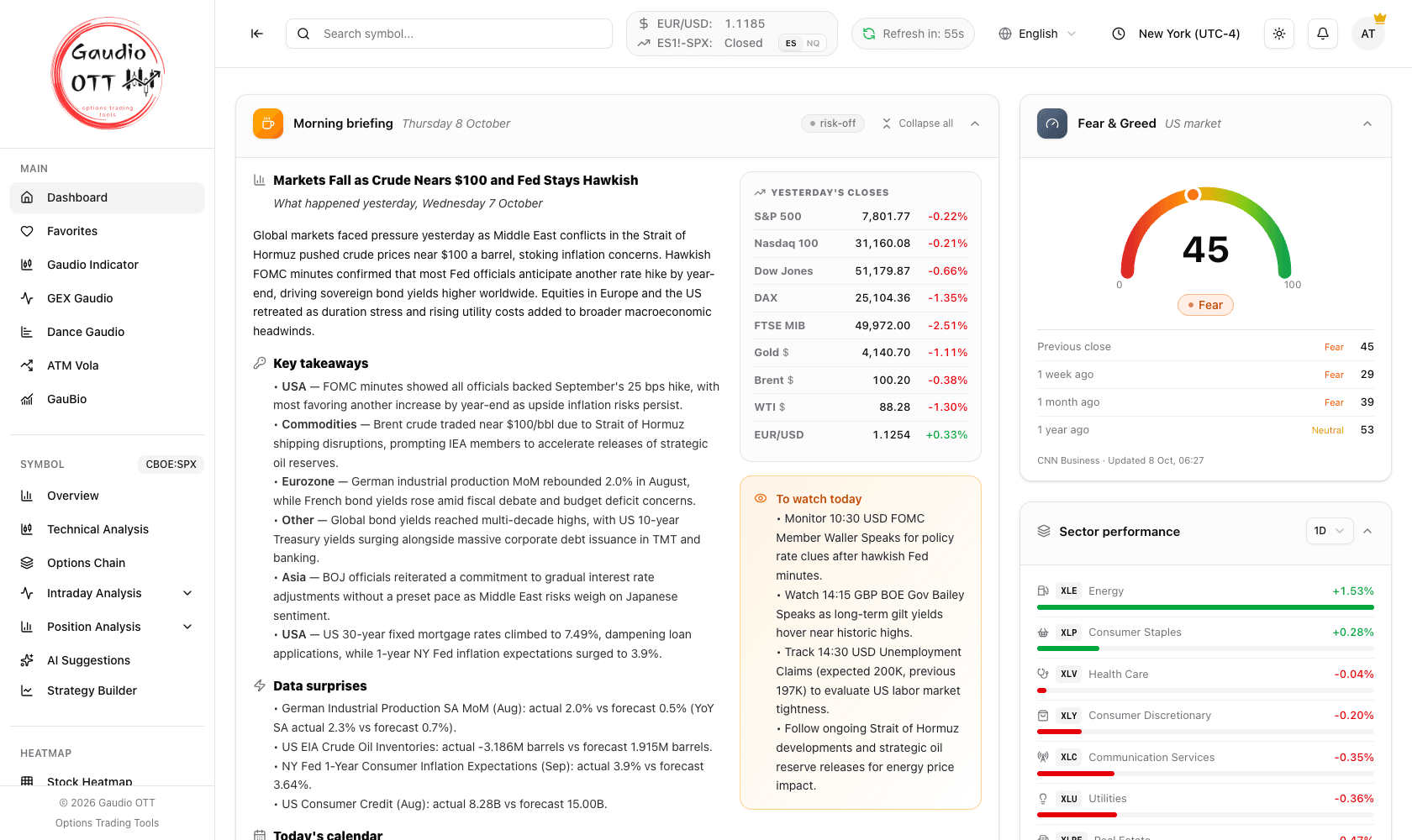
The three areas: the top bar, always visible; the side menu on the left, with the Symbol section and its active-symbol badge; the work area, here showing the Dashboard.
The top bar
Section titled “The top bar”From left to right the top bar contains:
- the icon that collapses the side menu, to free up space for charts;
- the symbol search field (Search symbol…), available from every page — see Symbol search;
- the quick data: the real-time EUR/USD rate and the difference between a future and its index, ES1!-SPX or NQ1!-NDX, picked with the small ES / NQ switch next to it (it shows Closed while the index is closed);
- on the Dashboard only, the Refresh in countdown to the next automatic refresh;
- the language selector (Italian / English);
- the timezone selector, which sets the timezone all charts and event times are read in;
- the light / dark theme button;
- the notification bell, with the number of unread messages — see In-app notifications;
- the user menu, which leads to Settings, Plan and sign-out — see User menu.
On mobile, the language, timezone and theme controls move to the top of the side menu, and the unread badge appears on the user avatar.
The left side menu
Section titled “The left side menu”This is the main navigation, organised into sections:
Main — Dashboard, Favorites, Gaudio Indicator, GEX Gaudio, Dance Gaudio, ATM Vola, GauBio.
Symbol — Overview, Technical Analysis, Options Chain, Intraday Analysis (Open Interest, GEX Open Interest, Volumes, GEX Volumes, Volatility), Position Analysis (Open Interest, Volumes, Find Inefficiency), AI Suggestions and Strategy Builder. Every entry in this section refers to the active symbol, whose code is shown as a badge next to the section title.
Heatmap — Stock Heatmap and ETF Heatmap.
Utility — Opportunities Scanner, Market Movers, Macro Calendar and News.
Configuration — Settings and Plan.
Help — Manuals, Video Tutorials, Leave a Review, and Send Feedback.
Legal — Privacy & Cookie Policy, Terms and Conditions.
Intraday Analysis and Position Analysis are collapsible groups: they expand automatically when you are already on one of their pages. If the entries do not all fit on screen, scroll the menu with the mouse wheel.
Every entry is visible on every plan. The plan check happens inside the page: opening a tool your plan does not include shows which plan it needs, with the 7-day free trial where it applies, instead of the tool. GauBio works the same way, except that its content is by invitation.
The central work area
Section titled “The central work area”This is the actual workspace. Data, charts and studies for the selected section are rendered here, and this is the part you interact with to customise an analysis — choosing expirations, filtering strikes, saving snapshots, adding legs to a strategy.
The active symbol
Section titled “The active symbol”Most of the app is symbol-relative. When you select an instrument from search, from a dashboard card or from favorites, it becomes the active symbol, and every page in the Symbol section refers to it until you change it. The badge next to the Symbol heading in the side menu always tells you which one is active.
A new account starts with the S&P 500 index (CBOE:SPX) as the active symbol. The choice is remembered by your browser, so the next time you open the app you find the last symbol you used.
Common mistakes
Section titled “Common mistakes”- Looking for a symbol page in the Main section. Options Chain, Intraday and Position analyses live under Symbol and always follow the active symbol.
- Reading chart times in the wrong timezone. Chart and calendar times follow the timezone selector in the top bar, not your operating system.
- Thinking a tool is missing from your plan because it is in the menu. Every entry is listed for everyone; the page itself tells you which plan it needs, and GauBio’s content needs an invitation.
Frequently asked questions
How is the Gaudio OTT interface organised?
Into three areas: a top bar with search, quick data and account controls; a left side menu with all navigation grouped into Main, Symbol, Heatmap, Utility, Configuration, Help and Legal; and a central work area that shows the charts and data of the section you selected.
What is the active symbol?
The active symbol is the instrument all pages in the Symbol section refer to. You set it by selecting an instrument from the search, from a dashboard card or from your favorites, and its code is shown as a badge next to the Symbol heading in the side menu.
What are the two numbers in the top bar?
They are quick market data: the real-time EUR/USD exchange rate and the spread between the S&P 500 future and the S&P 500 index.
How do I get more space for charts?
Use the collapse icon at the far left of the top bar to fold the side menu away. Individual charts also have a fullscreen button in their own toolbar.
Where do I change the language and timezone?
Both selectors are in the top bar on desktop, and at the top of the side menu on mobile. The language switches the whole interface between Italian and English; the timezone sets how chart and calendar times are displayed.
Related pages
Section titled “Related pages”Ready to use Gaudio OTT?
Section titled “Ready to use Gaudio OTT?”Open your free account and put what you just read into practice.