
Connect your broker
Connecting your broker lets Gaudio OTT read your positions and trades, so you can bring them into the Strategy Builder instead of typing them in. You connect it once, from Settings, with a code and one or two reports you create in your broker’s portal. The connection only reads: no order is ever sent from Gaudio OTT.
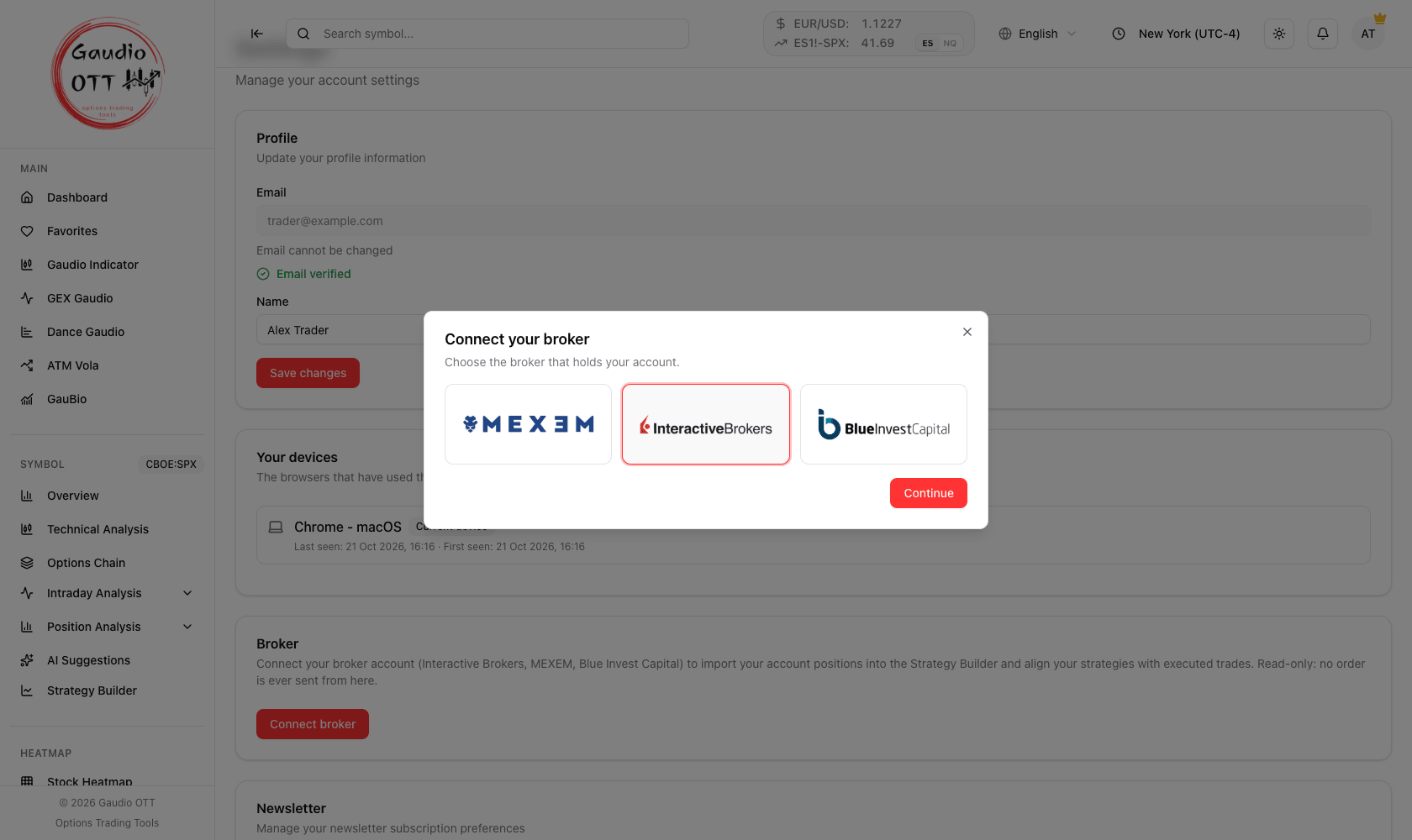
Connect broker opens this window: choose the broker that holds your account and click Continue.
What you can do with it
Section titled “What you can do with it”- Import from broker — turn the positions you hold into a strategy, with their real prices and dates.
- Align with IBKR — bring a saved strategy up to date with the trades you made afterwards.
Available on the Strategy and Ultra plans.
Which brokers
Section titled “Which brokers”Interactive Brokers, and MEXEM and Blue Invest Capital, whose accounts are managed from the Interactive Brokers Client Portal. The steps are the same for all three.
Step 1 — Prepare your broker’s portal
Section titled “Step 1 — Prepare your broker’s portal”You do this once, in the Interactive Brokers Client Portal (or your broker’s portal), logged in with your main user. The Guide at the bottom of the form in Gaudio OTT walks you through the same steps.
- Open Reports > Flex Queries (on older versions of the Portal the menu is called Performance & Reports).
- In the Activity Flex Query box press + and create a report called, for example, Last30Days:
- open the Open Positions and Trades sections and tick Select All in each, then Save (in Trades, the Execution option must stay on: it is on by default);
- choose your accounts, Format XML and Period Last 30 Calendar Days;
- in the General Configuration check that the date is
yyyyMMdd, the timeHHmmssand the separator;, and answer No to Include Offsetting Trade/Cancel Pairs?, Display Account Alias in Place of Account ID? and Breakout by Day? (these are the defaults); - click Continue, then Create.
- (Optional, recommended) In the Trade Confirmation Flex Query box create a second report called, for example, Today: section Trade Confirmation with Select All, Format XML, Period Today (the only choice), same general configuration. With it you also see today’s trades; without it, you see the situation at the previous close.
- Note the Query ID of each report: it appears when you click the (i) icon next to its name.
- Open Flex Web Service Configuration (the gear icon), make sure Flex Web Service Status is ticked and copy the Current Token. If there is no token yet, generate one with a 1-year expiry.
Step 2 — Connect in Gaudio OTT
Section titled “Step 2 — Connect in Gaudio OTT”- Open Settings from the user menu and find the Broker card.
- Click Connect broker, choose your broker and click Continue.
- Paste the Flex token and the Activity Query ID, and the Trade Confirmation Query ID if you created it.
- Click Verify and connect. It can take up to a minute.
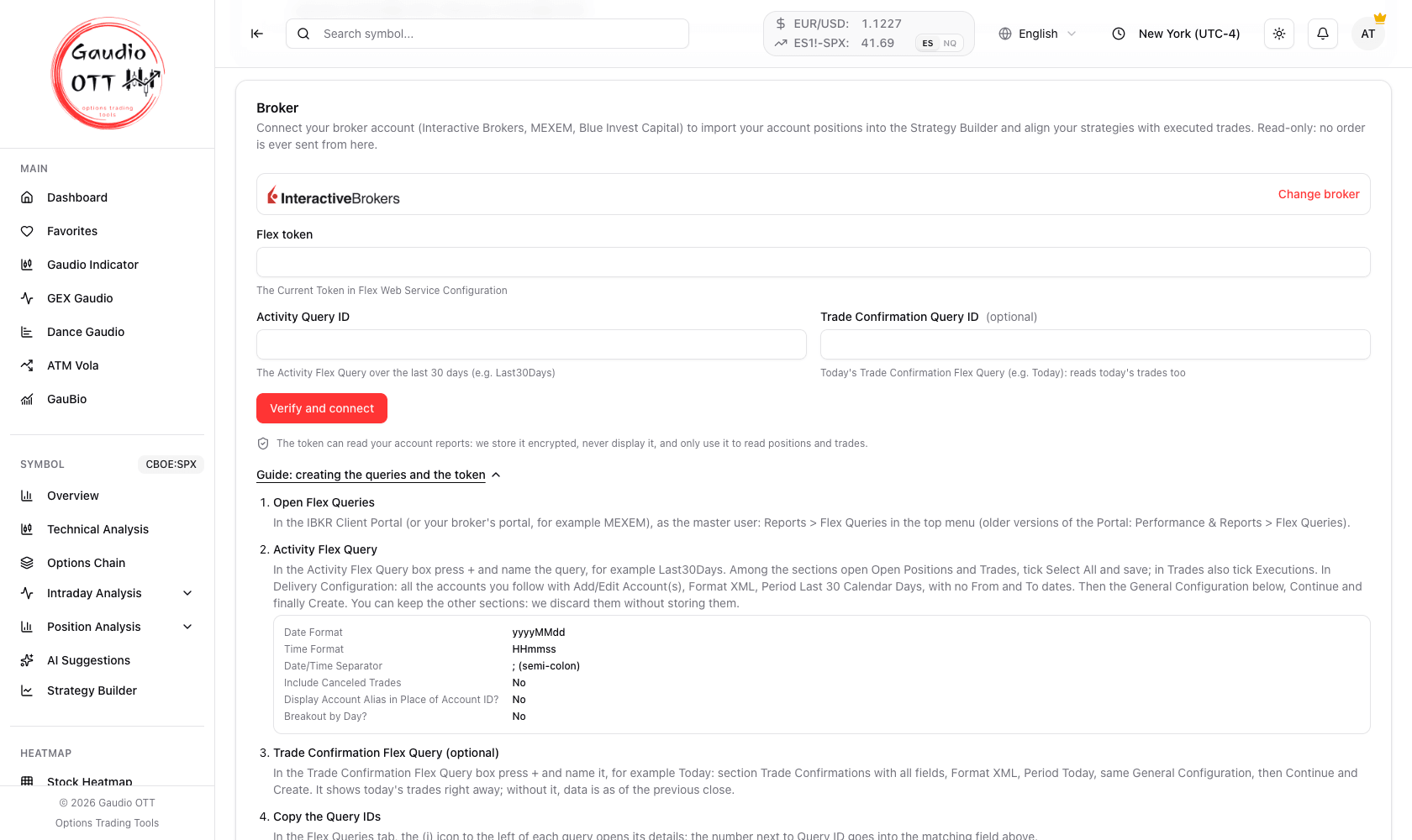
The form: the broker you chose (Change broker to pick another), the three fields and the guide to the portal at the bottom.
If something in the report needs fixing, the form tells you what to change in the portal, using the same words you find there. Fix it, come back and click Verify and connect again.
Once connected
Section titled “Once connected”The Broker card shows your account and your token (only their last digits), the date of the last report and whether today’s trades are included.
If the card says Reconnect needed, your broker no longer accepts the token — usually because it expired or because a new one was generated. Copy the current token from the portal and use Reconnect.
Disconnect removes the connection. Your saved strategies stay as they are, and you can connect again at any time.
Your data
Section titled “Your data”Gaudio OTT only reads your positions and trades, to show them in the Strategy Builder. The token is kept encrypted and is never shown again, and it cannot be used to place orders. Disconnecting, or deleting your Gaudio OTT account, removes it.
Frequently asked questions
Which brokers can I connect to Gaudio OTT?
Interactive Brokers, MEXEM and Blue Invest Capital. MEXEM and Blue Invest Capital accounts are managed from the Interactive Brokers Client Portal, so the steps are the same.
Can Gaudio OTT place orders on my account?
No. The connection only reads your positions and trades. No order is ever sent from Gaudio OTT.
Which plans include the broker connection?
The Strategy and Ultra plans, the same plans that include the Strategy Builder.
Do I need the second report, Trade Confirmation?
No, it is optional. With it you also see the trades you made today; without it, you see the situation at the previous close.
The card says Reconnect needed: what do I do?
Your broker no longer accepts the token, usually because it expired or a new one was generated. Copy the current token from Flex Web Service Configuration in the portal and click Reconnect.
What happens to my strategies if I disconnect?
Nothing: saved strategies stay as they are, and you can connect again at any time.
Related pages
Section titled “Related pages”Ready to use Gaudio OTT?
Section titled “Ready to use Gaudio OTT?”Open your free account and put what you just read into practice.